Get App UUID
After logging in to the Cloudflare Dashboard, you will see a string of characters. This is your Account ID.

dash.cloudflare.com/[Account ID]
If you enabled Preview Access through Pages project, you can follow the steps below to obtain the app UUID:
Go to Compute → Workers & Pages.
Find the Pages project where Preview Access was accidentally enabled, then go to Settings → Preview Access → Manage.
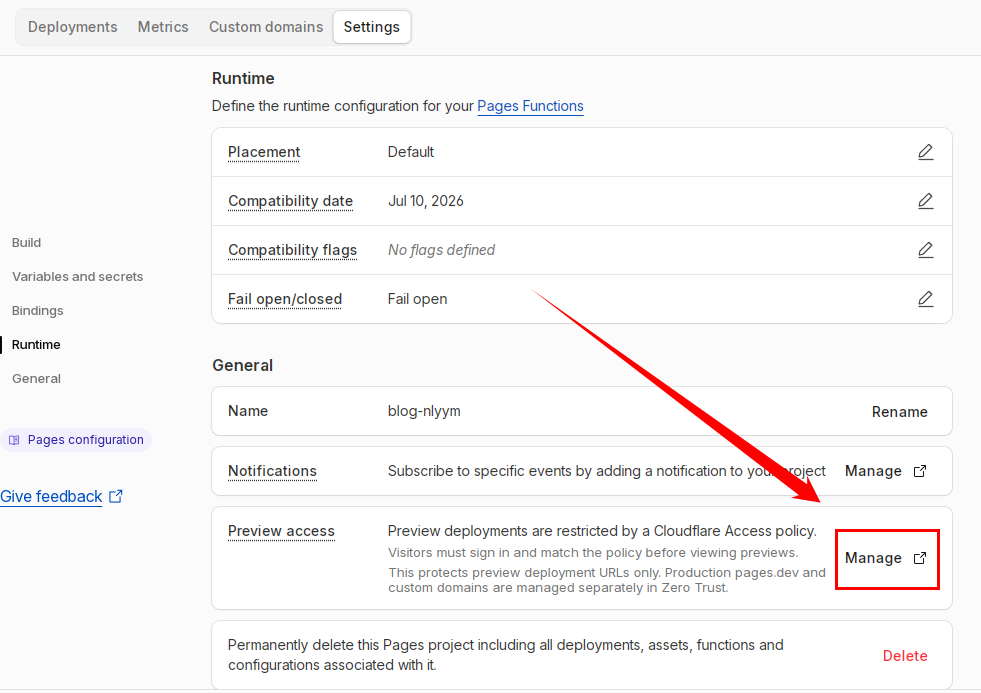
If it shows Restrict Previews here, it means that this Pages project does not have Cloudflare Access enabled.
After entering Manage, you will see two strings. As shown in the image, the first string is the Account ID, and the second string is the app UUID.

If you enabled an Access Policy through another method, you can query the app UUID using the following method.
Open the Cloudflare Dashboard and keep this page open. On Windows, press F12 or Ctrl + Shift + J; on Mac, press Command + Option + J. You can also right-click anywhere blank on the webpage, select Inspect, and then switch to the Console tab.
Execute the following code in the console. Make sure to replace YOUR_ACCOUNT_ID.
The first time you use the browser console, you need to confirm activation according to the prompt.
|
|
After the console outputs a successful request, open the Network tab. Among the generated traffic, locate the GET request named apps/.
Select this request and find the corresponding Access Policy ID in Preview or Response under result. This ID is the app UUID used later.
Disable Access Policy
Method 1: Disable Access Policy Through Browser Console
This method uses the internal Dashboard API endpoint and relies on browser session cookie authentication. No API Token is required.
Open the Cloudflare Dashboard and keep this page open. On Windows, press F12 or Ctrl + Shift + J; on Mac, press Command + Option + J. You can also right-click anywhere blank on the webpage, select Inspect, and then switch to the Console tab.
Execute the following code in the console. Make sure to replace YOUR_ACCOUNT_ID and YOUR_APP_UUID.
The first time you use the browser console, you need to confirm activation according to the prompt.
|
|
If the console returns a Deletion successful message, the Access Policy has been successfully disabled.
Method 2: Disable Access Policy Using curl
This method uses the official Cloudflare API endpoint and requires a Global API Key.
Open this page, find Global API Key, then view or modify it and copy the key.
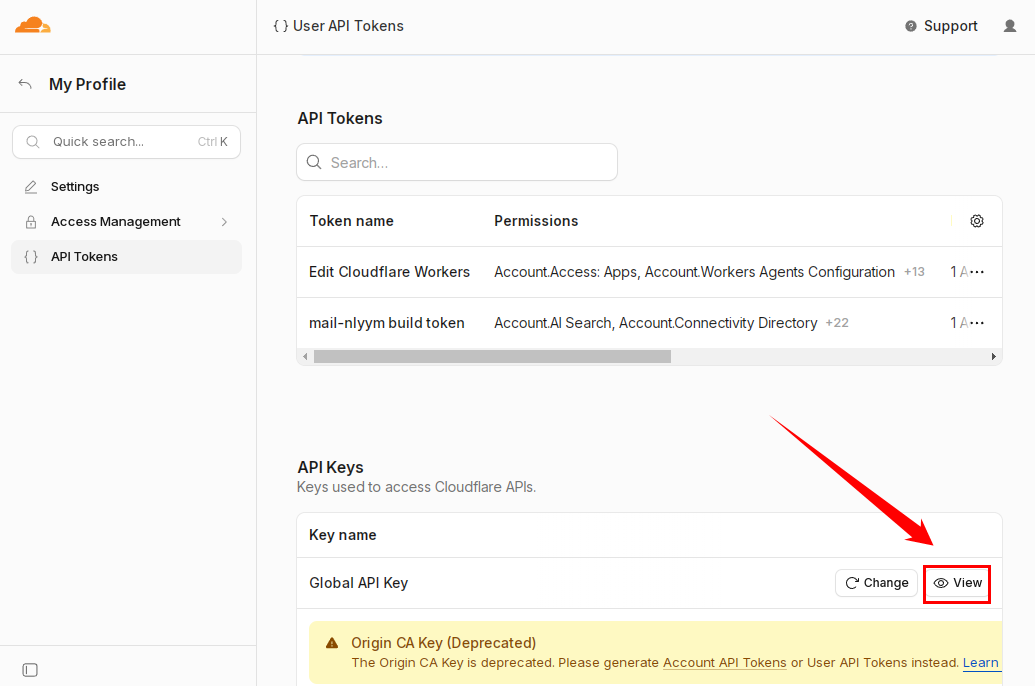
The Global API Key starts with
cfk_. If your account used a Global API Key before April 2026 and you have not replaced it, it may not have thecfk_prefix.
Next, use the curl command to send a DELETE request to disable the specified Access Policy (make sure to modify the values).
Windows:
|
|
Linux:
|
|
Make sure to replace
[Account ID],[app uuid],[Account Email], and[Global API Key].
If the output is similar to the following, the Access Policy has been successfully disabled.
|
|